Your business profile is your digital storefront on njlegalize.me. A complete, up-to-date listing builds consumer trust and helps your business show up well in Directory searches. Here's how to edit your profile after claiming or creating your business on the platform.
You'll need a business account with an active, claimed listing to access these settings.
Step 1: Go to Your Business Dashboard
Log in and navigate to your Business Dashboard. This is your control center for everything related to your njlegalize.me presence — events, profile, analytics, and subscription.
Managing More Than One Business
If you own or manage several claimed businesses under one account, your dashboard shows a business switcher — a menu of every business you control. The business you select becomes your active business, and everything you edit next (profile, photos, events, subscription) applies to that business until you switch again. Only one business is active at a time, so glance at the switcher before making changes, and use it to hop between your listings without logging out and back in.
Step 2: Open Edit Profile
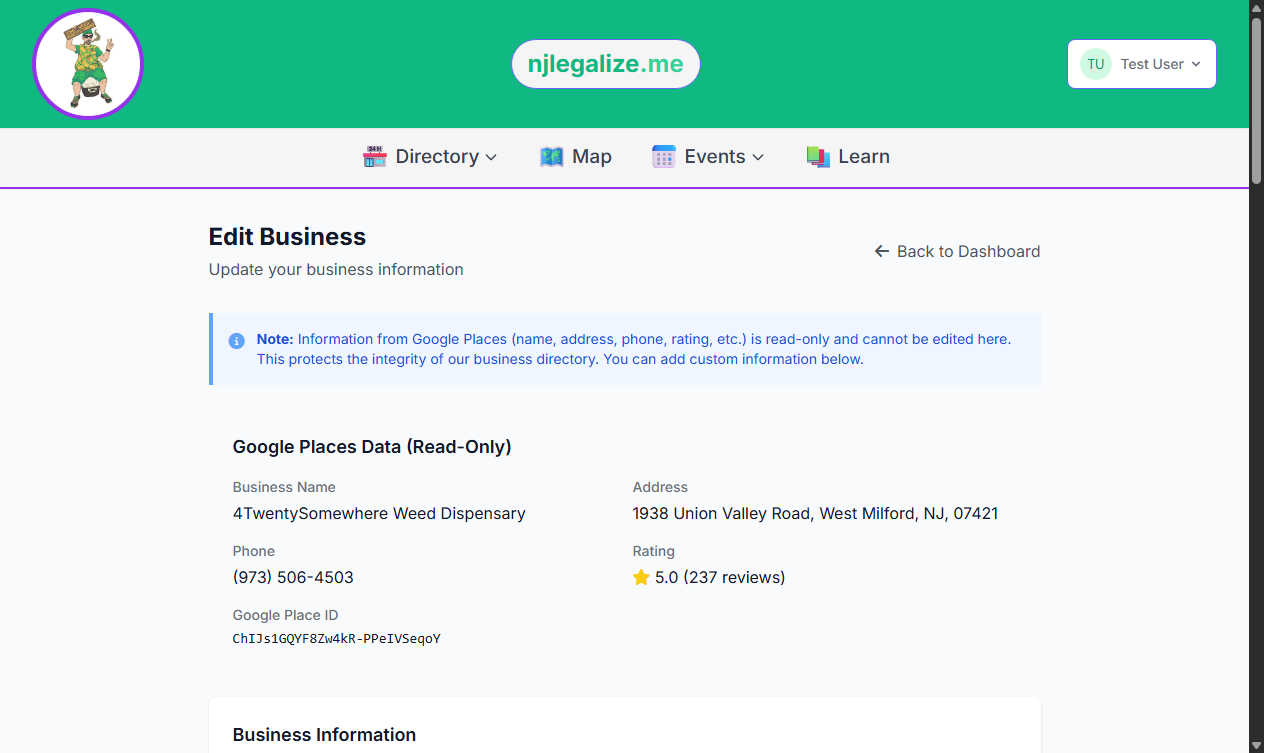
On the dashboard, click the Edit Profile button. This opens the business profile editor at /dashboard/business/edit.
Step 3: Update Your Core Information
The profile editor lets you update:
- Business description — up to 2,000 characters. Use this to explain what your business offers, who your customers are, and what sets you apart. This is the most important field for consumer trust.
- Custom hours — enter your hours of operation in whatever format is clearest for your customers (e.g. "Mon–Sat: 10am–8pm, Sun: 11am–6pm").
- Venue toggle — if your physical location also hosts events, enable this so your business appears as an option in the event submission venue list.
Step 4: Add Photos
Photos make a significant difference in how often consumers click on a listing. Use the photo upload section to add images of your space, products, staff, or brand. The number of photos you can upload depends on your plan:
- Free — 1 photo
- Premium — up to 10 photos
- Premium + Extra Photos add-on — up to 20 photos
Accepted formats: JPG, PNG, WEBP. Maximum 2MB per photo. To remove an existing photo, click the delete icon next to it in the editor.
Step 5: Add Social Links, Logo, and Video (Premium)
Premium subscribers can add social media links to their profile — Instagram, Facebook, Twitter/X, TikTok, and LinkedIn. These appear on your public listing page and give consumers another way to connect with you.
Premium also includes a business logo upload and a video embed from YouTube or Vimeo. Add the video URL in the Video section, and it will appear as a playable embed directly on your listing.
Step 6: Custom Banner and Branding (Premium Add-Ons)
Want a more branded profile? Premium subscribers can subscribe to individual add-ons from the Plans page:
- Custom Banner Image ($20/mo) — upload a hero banner (min 1,200×300px, max 5MB) at the top of your listing
- Brand Color Customization ($15/mo) — apply your brand hex color to profile accents
- Extra Photos (+10) ($15/mo) — raise your photo limit from 10 to 20
- Brand Pack ($39/mo) — all three add-ons bundled (~22% savings)
Once an add-on is active, the corresponding fields appear in the profile editor. Add-ons are separate PayPal subscriptions and can be cancelled anytime from your dashboard.
Step 7: Save Your Changes
Click Save Changes at the bottom of the form. You'll be returned to your Business Dashboard with a confirmation message. Changes are visible on your public listing immediately.
Step 8: Respond to Customer Reviews
When someone leaves a rating or written review on your listing, you'll get an email letting you know. To reply, visit your own business's public listing page (while logged in as the claimed owner) and scroll to the Community Rating section — each review has a Respond option right below it. Your response appears publicly under the review, and the reviewer gets an email letting them know you replied. You can edit or remove your response at any time from the same spot.
See How to Rate and Review a Business for more on how the review system works from a customer's perspective.
Not on a paid plan yet? See Understanding Subscription Plans on njlegalize.me to learn what Premium and add-ons unlock.